
Find your NFC card code
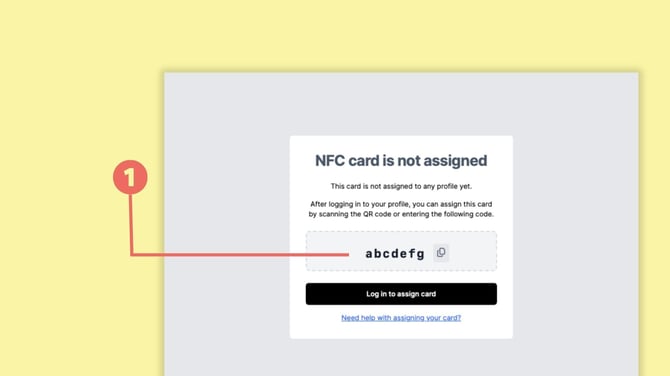
Every baningo NFC card has a unique code that identifies the physical card.
You can retrieve the code by:
- scanning the NFC chip with your smartphone, or
- scanning the QR code printed on the NFC card, if available
After scanning the card, a page opens showing the unique NFC card code.
Copy or note this code because you will need it to connect the card to your digital business card.
Connect the NFC card
Log in to baningo and open Manage NFC cards.
Start the process for connecting an NFC card.
You can scan the QR code on the NFC card using your camera.
Alternatively, select Enter code and enter the unique code manually - e.g., abcdefg
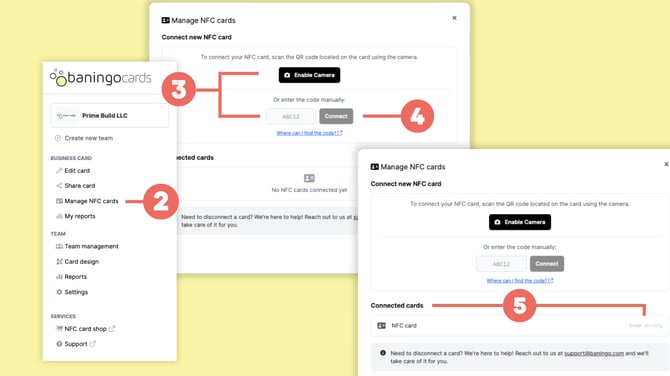
Once the process is complete, your NFC card will be successfully linked to your digital business card. Anyone who taps your NFC card with their smartphone will be directed straight to your digital profile. You can view and manage the connection at any time under Manage NFC Cards, where the linked card will be listed in the Connected Cards (5) section.
For Admins: Link an NFC Card to an Employee Profile
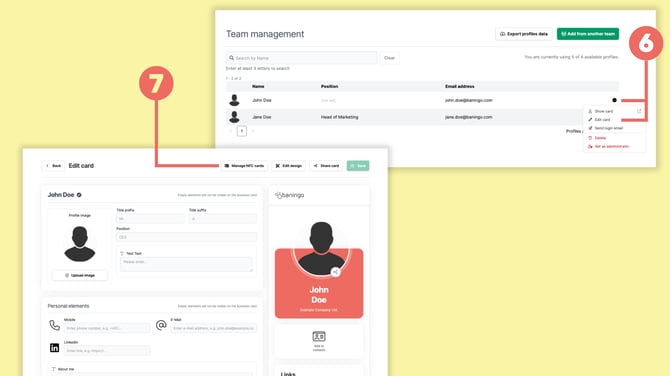
Admins can link an NFC card to any team member’s profile. The process mirrors the steps above, with one additional entry point:
-
Open Team management in the menu
-
Find the employee in the list
-
Click the three-dot menu at the far right of their row
-
Choose Edit card (6)
-
Go to Manage NFC cards (7)
-
Scan the card’s QR code or enter the card code (retrieved by scanning the NFC chip or QR, as described above)
How to Unlink (Disconnect) a Card
At the moment, unlinking an NFC card from a digital profile can only be done by our Support Team.
Please email support@baningo.com and include the card code (shown on the fallback page after scanning).
Optional but helpful: add the employee’s name and account email so we can locate the correct profile quickly.