
Create a new team
Administrators can create separate teams for different departments, companies, brands, projects or other groups that require their own digital business cards.
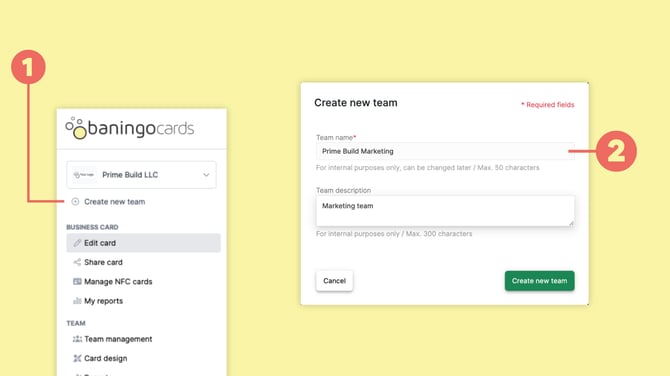
Select Create new team (1).
Enter the team name and, if needed, an internal team description (2).
Then create the team.
Creating additional teams requires an active Business plan.
Configure the new team
Once the team has been created, you can configure it independently from your other teams.
For each team, you can manage areas such as:
This allows different teams to use different branding, elements, members and settings.
Manage or remove a team
Open Team settings to manage the settings of the selected team.
You can update information such as the team name and description.
If a team is no longer required, administrators can also delete it.
Deleting a team permanently removes the team and its associated information, so only delete a team when you are sure it is no longer needed.
If deleting the team would also remove administrator profiles, you may first need to remove those profiles individually or assign them to another team.