
Create a Personal element
Open Card design for the team you want to edit.
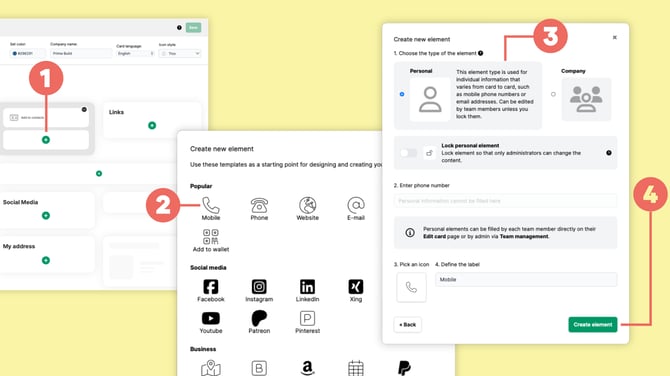
Click the + icon (1) where you want to add the new element.
Choose the type of information you want to add. For example, select Mobile (2) to add a personal phone number.
Choose Personal (3) as the element type.
You can adjust the label and other available settings if needed.
Click Create element (4) and save your changes in Card design.
Only administrators can create or remove Personal elements from the card design.
How users fill in Personal elements
Creating a Personal element defines which information can be added to the digital business cards in the team. It does not add the actual information for each person.
Team members enter their own information under Edit card.
For example, after creating a Personal phone element, each team member can enter their own phone number.
Administrators can also fill in Personal elements on behalf of team members through Team management.