Set up your company branding
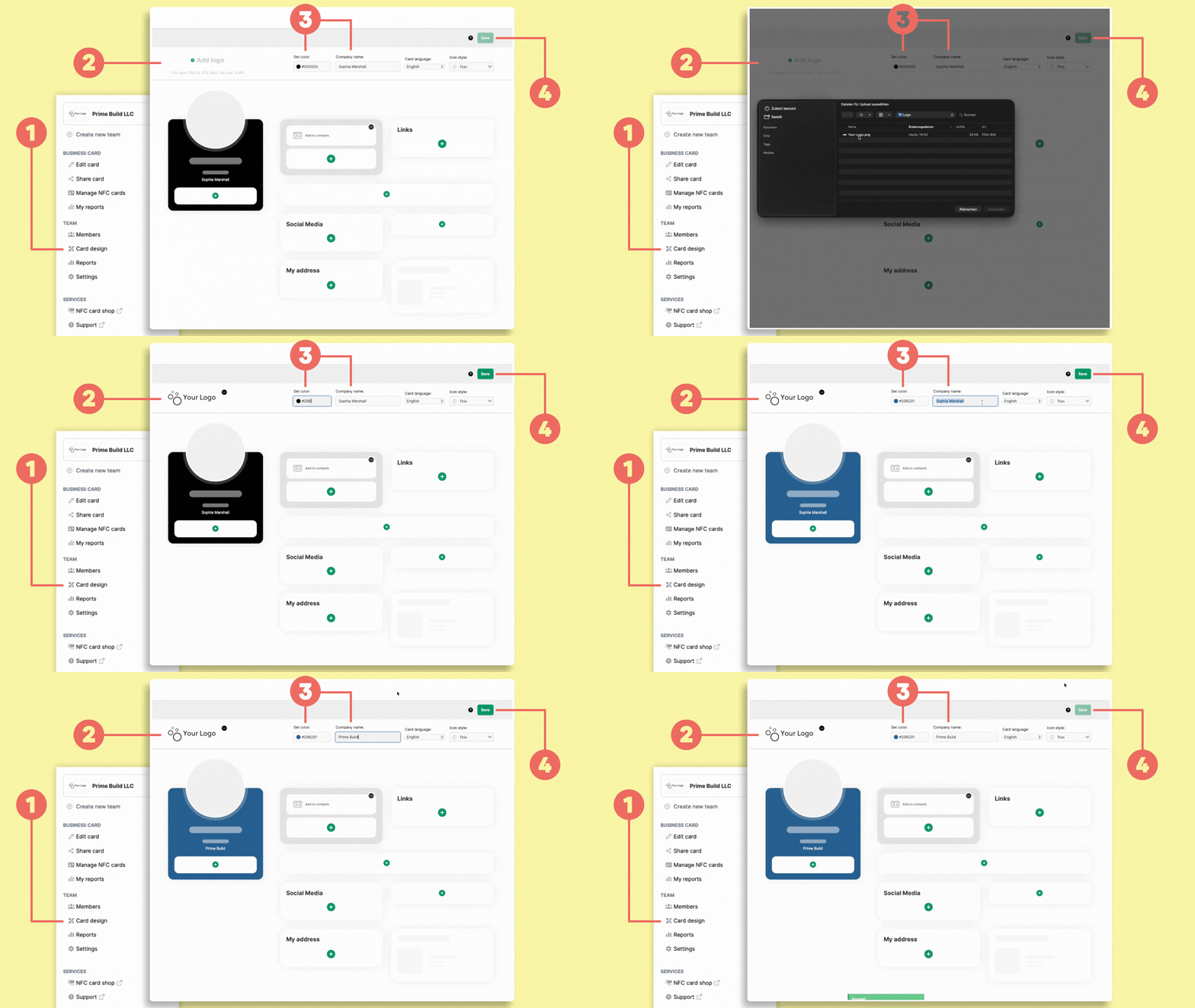
Open Card design (1) for the team you want to configure.
Start by uploading your company logo (2) and entering your company name (3).
You can choose your brand color using the color selector or enter your HEX color value directly.
Click Save (4) when you’re finished.
Add the basic contact options
Once your branding is ready, you can define which information should appear on your digital business cards.
A useful basic setup includes:
- phone number
- email address
- company website
You can add more elements at any time.
Add a phone number
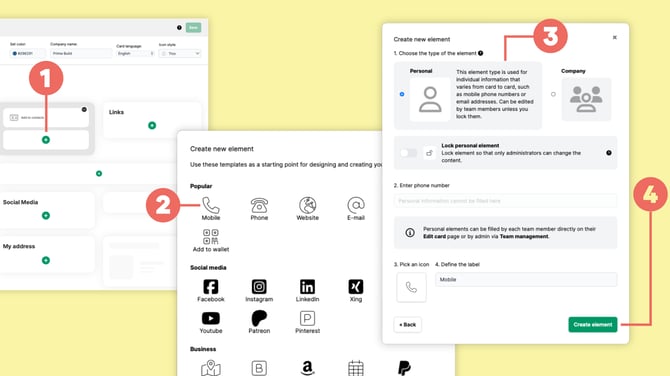
In Card design, click the + icon (1) where you want to add the phone number.
Select Mobile (2) or another suitable phone element.
Choose Personal (3) as the element type.
A Personal element creates a field that each person can later fill with their own information. You are therefore creating the phone-number field here, not entering your own phone number yet.
If needed, you can also change the label of the element.
Click Create element (4).
You can change the position of an element later using drag and drop.
Add an email address
Adding an email address works in the same way.
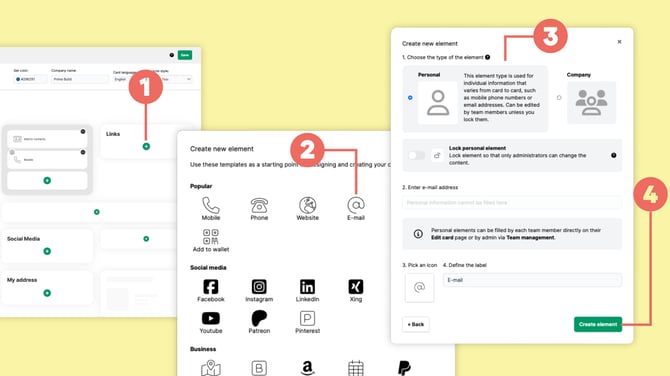
Click the + icon (1) where you want to add the element.
Select E-mail (2) and choose Personal (3).
Click Create element (4).
The individual email address is added later under Edit card.
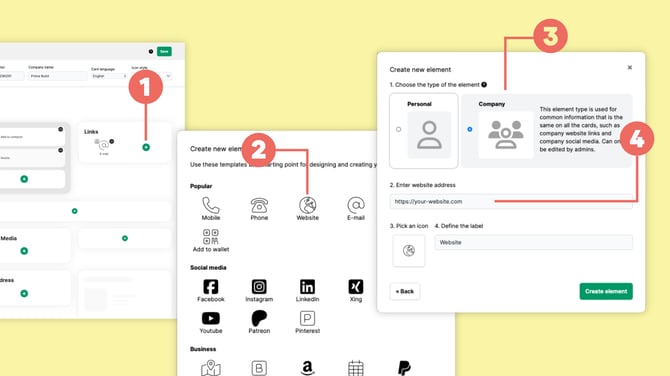
Add your company website
For information that is the same for everyone in the team, you can use a Company element.
Click the + icon (1) in Card design and select Website (2).
Choose Company (3).
Enter your company website in the URL field (4) and click Create element.
A Company element is managed centrally and displays the same information across the cards in the team.
Phone numbers and email addresses, on the other hand, are usually different for each person and are therefore typically created as Personal elements.
For more information, see What's the difference between Personal and Company elements?
Adding your personal data to your digital business card
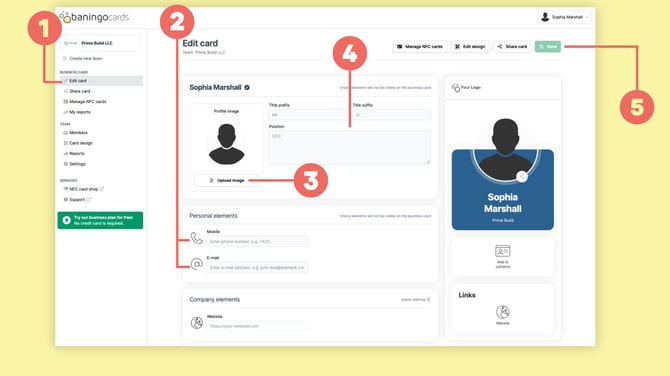
Now that we have finished the design template, it is time to fill in your data. Click on Dashboard (1) in the menu on the left and then select Edit (2) on the digital business card you wish to update.
You will now see all the elements you previously created in the Design and Link Management section. Fill in your actual phone number and email address (3). You can also upload a profile photo (4) and add your academic titles and job position (5).
Once you are finished, click the Save button in the top right corner (6) – and you're all set!