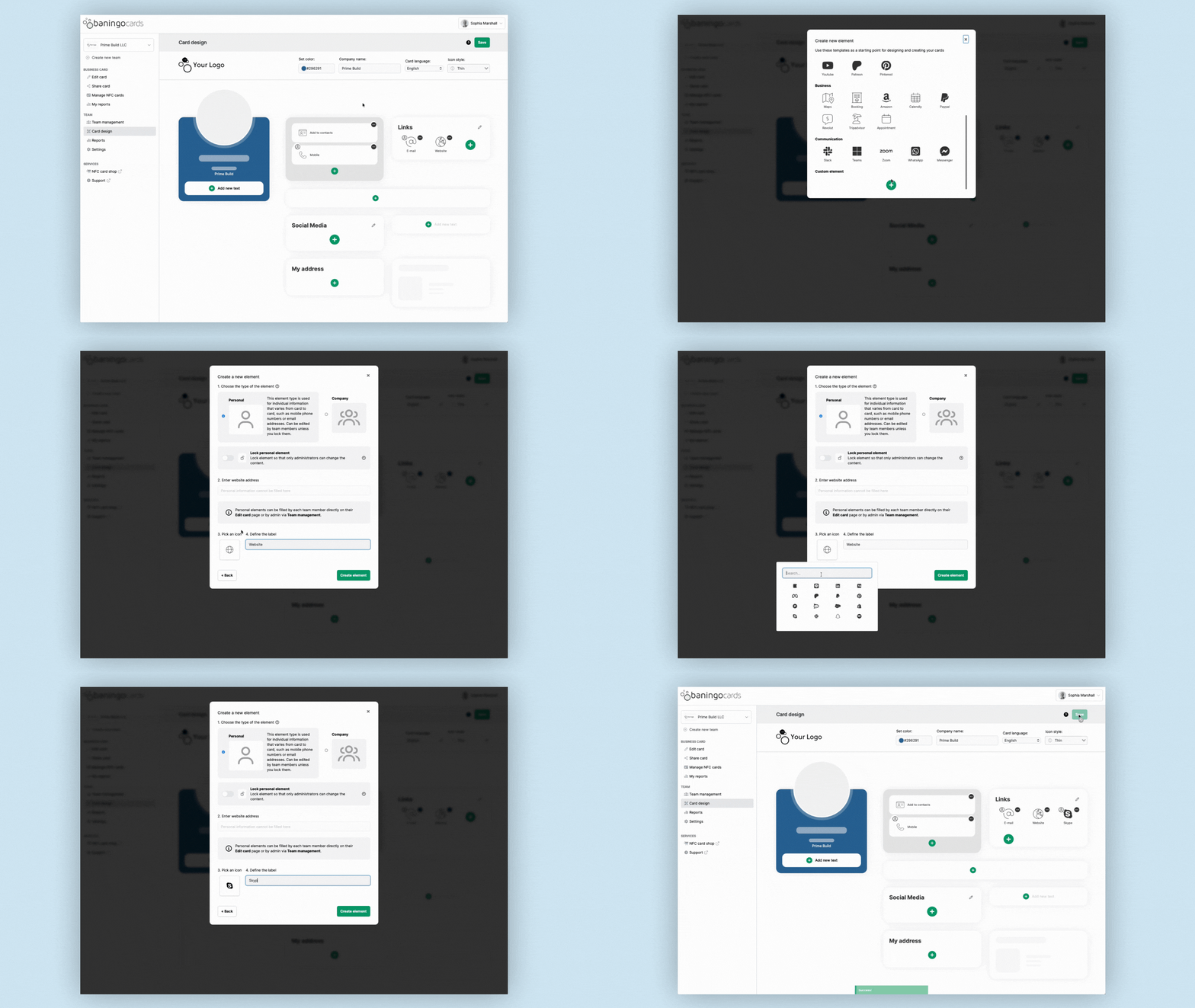
Create a custom element
Open Card design for the team you want to edit.
Click the + icon in the section where you want the new element to appear, for example Links or Social Media.
The element library will open.
Select Custom element at the very bottom.
You can then configure the element by choosing or changing:
- the label
- the icon
- the type of element
- the destination URL
Choose the element type and destination
Choose Personal if every team member should be able to enter their own information.
Personal elements are filled in later under Edit card.
Choose Company if the same information should appear on all digital business cards in the team.
For a Company element, enter the destination URL directly while creating or editing the element.
Click Create element and save your changes in Card design.
You can also change the position of the element later using drag and drop.