Change your account interface language
Changing your interface language only affects your own baningo account. It does not change the interface for other users or the language displayed on shared digital business cards.
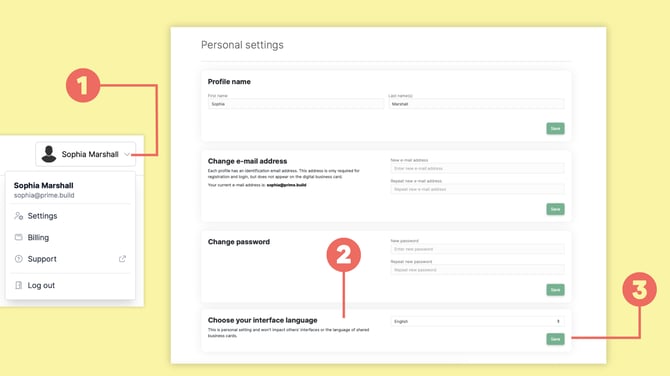
Click your profile name in the top-right corner (1) and open Settings.
Choose your preferred language under Choose your interface language (2).
Click Save (3).
Change the language of your digital business card
To set or update the primary language shown to people viewing your public card:
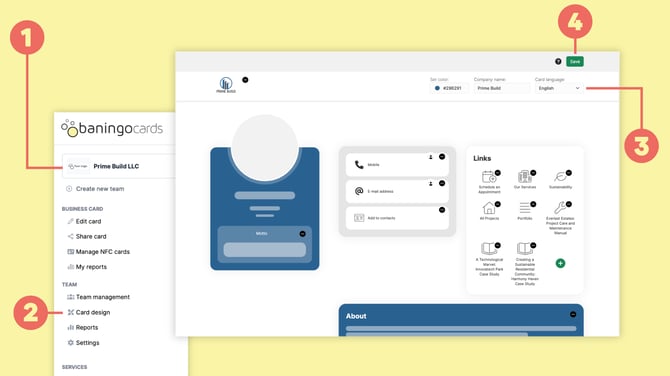
Select Team: If you manage multiple teams, select the correct team from the top dropdown or team switcher (1).
In the main navigation menu, go to Card design (2).
Locate the Language (3) settings section.
Select your desired language from the dropdown menu. Click Save (4).
Please note: Automatic translation applies only to standard system elements (e.g., "Save contact"). Custom elements and user-edited labels (e.g., custom phone or address titles) will not be translated automatically and must be adjusted manually in the respective language.