Change your company name
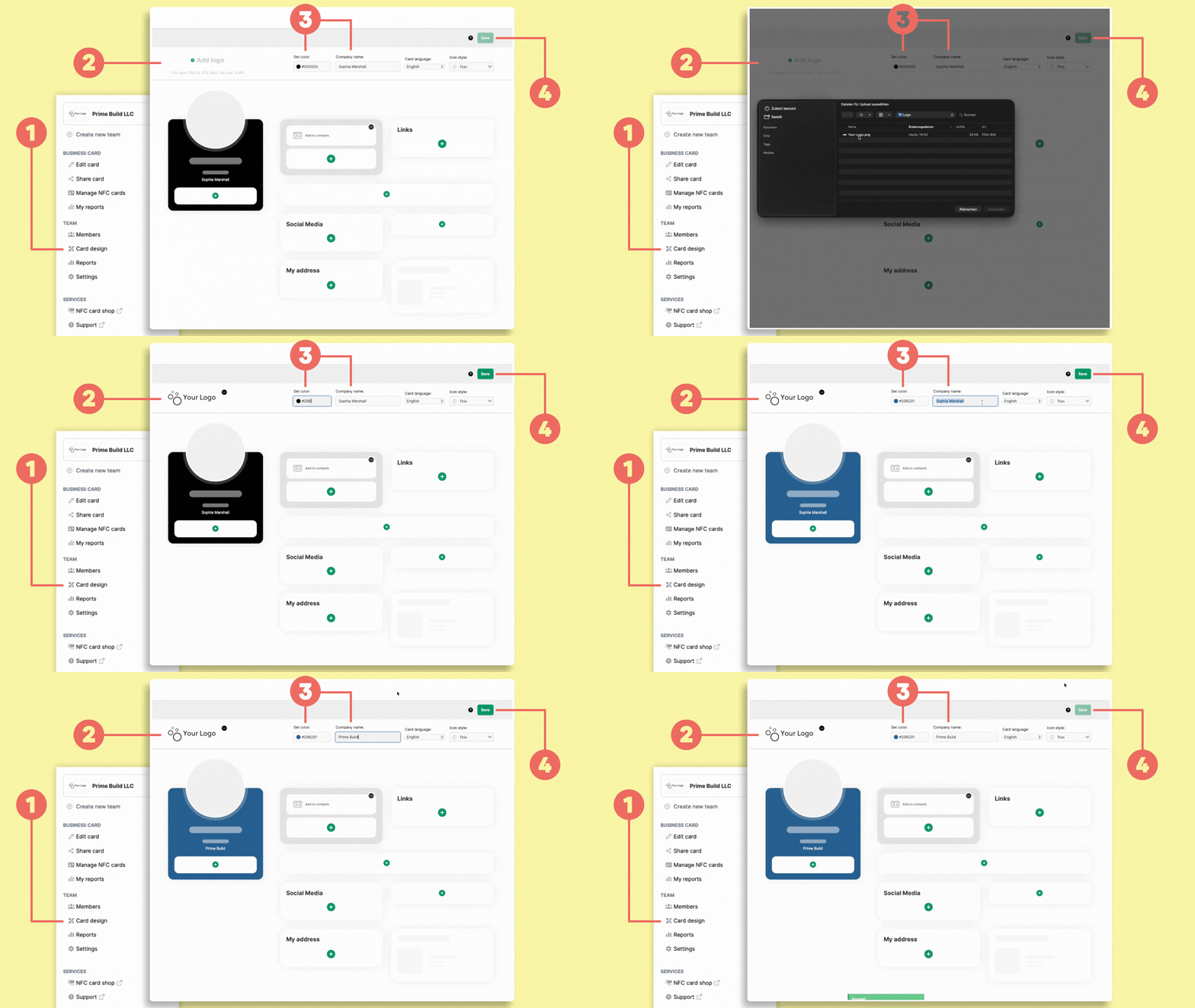
Open Card design (1) for the team you want to edit.
If you manage multiple teams, make sure you have selected the correct team before making any changes.
Enter the new company name in the Company name (3) field.
Click Save (4) in the top-right corner.
Company names are managed separately for each team. If you use different company names for different teams, update them individually.
Add or change your company logo
Open Card design (1).
Click Add logo (2) to upload your company logo.
If a logo is already available, you can replace or remove it from the logo area.
Once you’re finished, click Save (4).
Change your brand color
In Card design (1), you can also change the main color used on your digital business cards.
Use the color selector in the top section of the page or enter your HEX color value directly.
The preview lets you check the result before saving your changes.
Click Save (4) when you’re finished.