Customization options & required files by product
Before submitting any files, please ensure you have placed your order in the baningo NFC card shop and created your digital business card (sign up and create your profile here).
Note on custom encoding: If you require custom encoding (e.g., linking your card to an external URL instead of a baningo profile), you do not need to create a digital business card. Instead, please mention this request when emailing us your design files. Please be aware that choosing custom encoding voids the 100-day money-back guarantee (see Return Policy).
Here is what you need to provide based on your chosen product:
- Essential Cards & Epoxy Stickers: These are straightforward and do not include customization. You do not need to submit any files or information.
- Classic, Wooden, Metal, and Transparent Cards: Personalize with your name and company logo. Please email your logo as a vector graphic to support@baningo.com. If ordering for multiple team members, provide a list of the corresponding employee names.
- Premium Cards (Custom Design): These offer full customization. Please design your card according to our specifications. You can download the requirements here: Print data requirement sheet for PVC Premium and Print data requirement sheet for Bamboo Premium. Send your print-ready design to support@baningo.com.
- Custom Design Stickers: These offer full customization. Send your print-ready custom sticker design (vector file) to support@baningo.com. There is no specific data requirement sheet for stickers.
For general questions regarding the order process, cancellations, or delivery times, please read: How to order NFC cards, change, or cancel your order.
File requirements: Why we need vector files
For most customized products, we strongly require your artwork to be a vector file (such as .AI, .EPS, .PDF, or .SVG). Unlike standard image files (.JPG or .PNG) which are made of pixels, vector graphics use mathematical equations, allowing them to be scaled infinitely without losing sharpness.
Vector files are prioritized for three main reasons:
- Scalability: They can be resized without losing quality.
- Precision: They ensure precise, clean lines essential for logos and text.
- Print Quality: They guarantee professional results without pixelation.
Requirements by material
- Metal, Wood, and Transparent Cards: A vector file is MANDATORY. Our engraving machines and transparent printing processes require exact mathematical paths. Raster images (.JPG/.PNG) will result in blurry or technically impossible prints.
- White PVC Cards: While high-resolution .JPG or .PNG files are accepted, we strongly recommend vector files for the sharpest results. Raster formats may cause a slight decrease in edge sharpness.
Tip: To check if your file is a vector, zoom in as much as possible. If the edges become blocky or pixelated, it is a raster image. If the lines remain perfectly smooth, it is likely a vector file. If you only have a raster image, contact your designer for the vector version.
Including a QR code in a custom design
baningo automatically uses dynamic QR codes for Essential and Classic cards. The major advantage of a dynamic QR code is that the profile assignment of the card can be changed at any time in the future.
If you choose a Premium card and wish to include a QR code in your custom design, you must insert the QR code into the final print-ready artwork yourself. baningo does not make design changes or add QR codes to files after submission.
We highly recommend using a dynamic QR code for Premium cards as well:
- To use a dynamic QR code: Please email support@baningo.com to request a dynamic QR code for your specific design before submitting your final artwork.
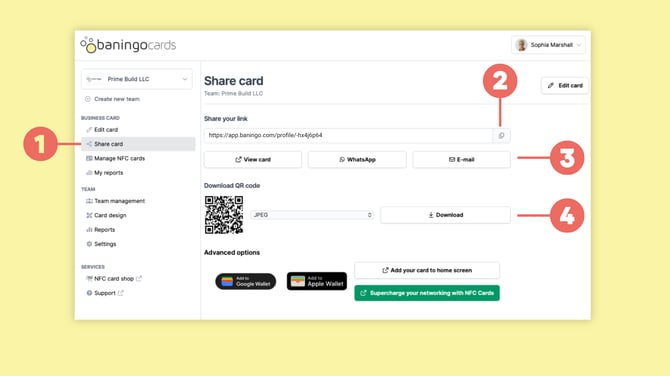
- To use a standard, static QR code: You can download a QR code directly linked to your current profile by following these steps:
- Open Share card (1).
- Under Download QR code, select your preferred file format and click Download (4).
- Insert the downloaded QR code into your card design before submitting the artwork.
If you need to download static QR codes for other people in your organization, please read: How to generate QR codes for your teammates.