
Update billing information
Only administrators can change billing information.
Open Billing (1).
Click Billing information (2).
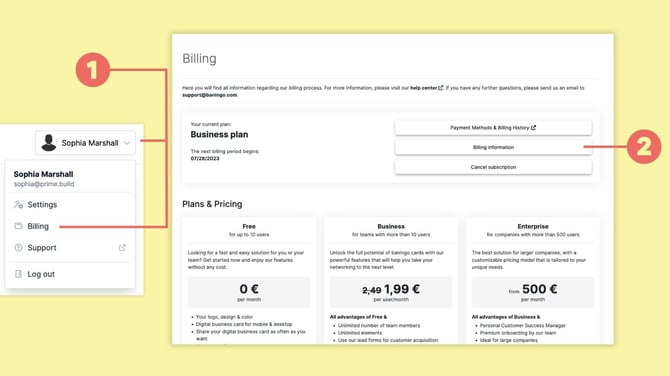
Under Billing Information, you can edit your company name, address, and billing email address. To update the VAT ID of an active subscription, please reach out to support@baningo.com.
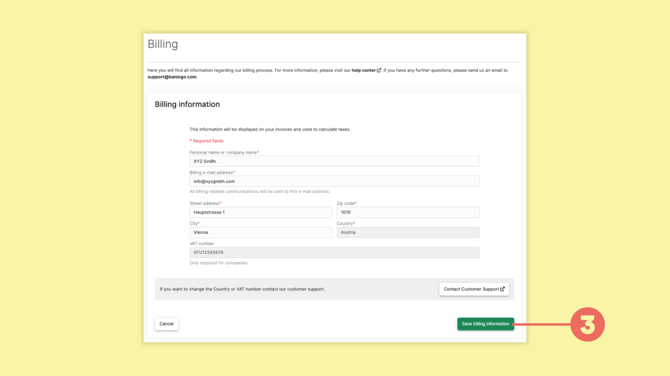
Don't forget to click Save billing information (3) when you're done.
Add or change a payment method
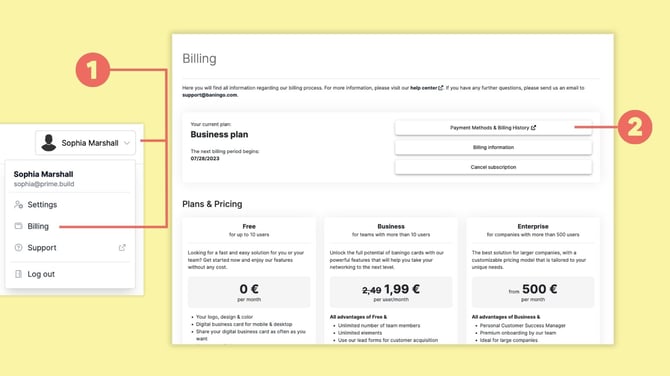
Open Billing (1).
Click Payment Methods & Billing History (2).
For security reasons, you will be redirected to a page where you need to enter your billing email address (3).
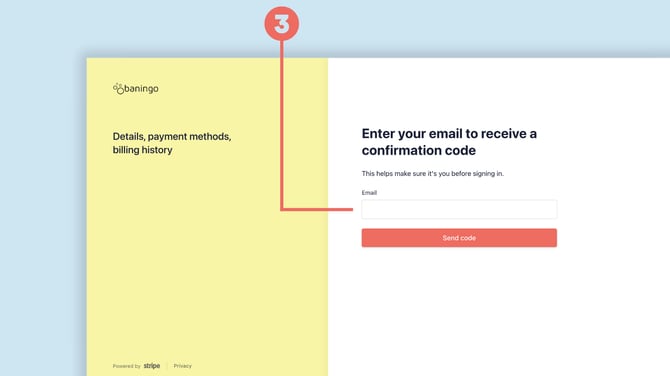
A confirmation code will be sent to your billing email address. Enter the code to access your billing portal.
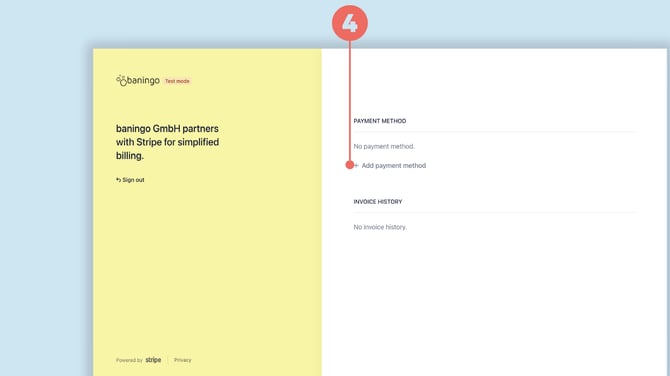
Once you're signed in, click Add payment method (4).
Choose Card or SEPA Debit (5) and enter the required payment information.
If you are replacing an existing payment method, make sure the new payment method is selected as the default.
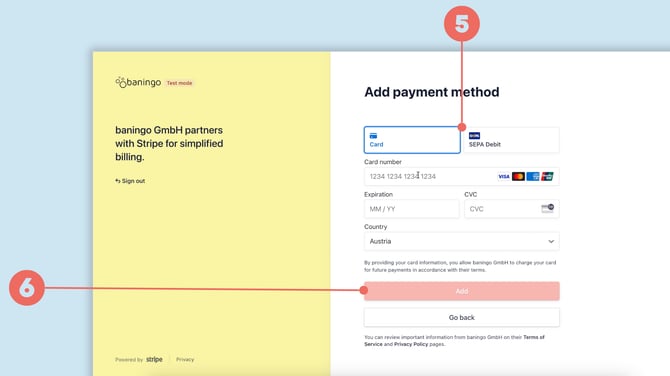
Click Add (6) to save it.
You can also remove an existing payment method from the billing portal.
Accepted payment methods
You can manage your payment methods directly in the billing portal. The following options are currently supported:
- Credit / Debit Card
- SEPA Direct Debit
- PayPal
- Apple Pay
- Google Pay