Access your digital business card
Your digital business card is created by your administrator.
Once your profile is ready and access has been enabled, you’ll receive an email that allows you to set your password and log in to your account.
If you haven’t received the email or no longer know your password, you can use Reset Password at any time.
Complete and edit your card
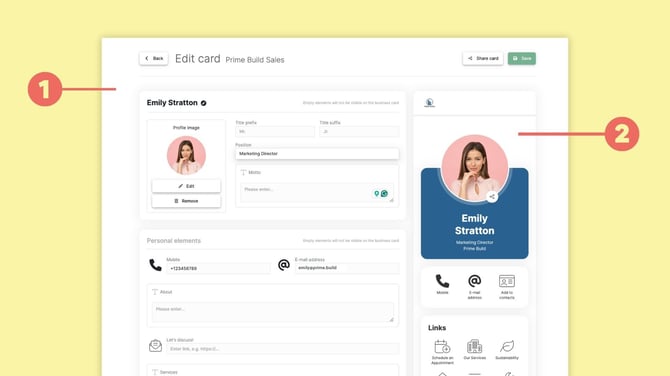
After logging in, open Edit card.
Here you can update the information displayed on your digital business card.
Use the profile area (1) to manage your profile photo and basic information such as your name and job title.
Below this section, you can fill in or update your Personal elements, such as your phone number, email address, social media profiles or other personal links.
The live preview (2) shows how your digital business card will look to others.
Once you’re finished, click Save.
💡 Note: Some information may be managed centrally by your company. If an element is locked or defined as a Company element, you won’t be able to change it yourself. In that case, contact your administrator.
Share your digital business card
Once your information is complete, you’re ready to share your card.
Open Share card to access your sharing options.
You can share your digital business card in several ways:
- Direct link: Copy your personal link and send it via email, chat or any other channel.
- QR code: Show or download your personal QR code so others can scan it.
- NFC card: If you have a baningo NFC card, simply tap it against a compatible smartphone.
- Wallet: Add your digital business card to Apple Wallet or Google Wallet for quick access on your phone.
💡 Need detailed instructions?
Check out our guide on How to share your digital business card for step-by-step instructions on all sharing options and tips for your smartphone.
Manage your personal settings
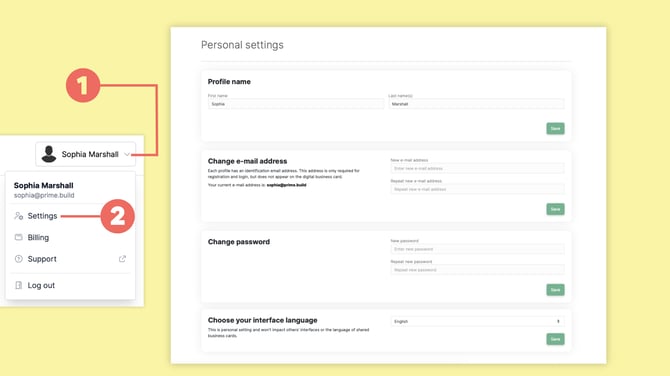
To change your account settings, click your name in the top-right corner (1) and select Settings (2).
Here you can manage settings such as your:
- interface language
- account email address
- password
Settings that affect your company, team or card design are managed by an administrator.