Upgrade to the Business Plan
Only administrators can manage subscriptions.
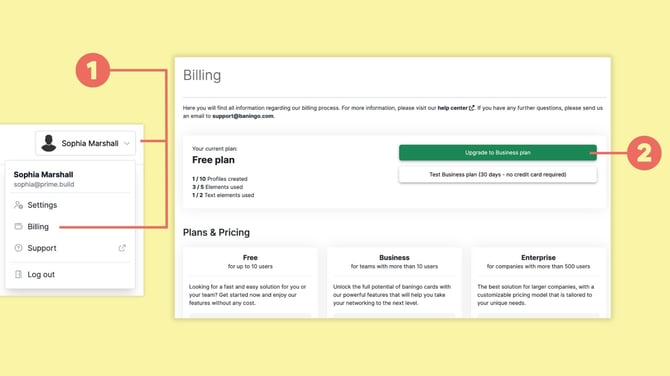
Open Billing (1).
Here you can see your current plan and the available subscription options.
Click Upgrade to Business plan (2).
Follow the checkout steps and choose your preferred billing period:
- Pay monthly
- Pay annually (-20% off)
Complete the required billing and payment information to activate the Business Plan.
Switch from monthly to annual billing
If you currently use the Monthly Business Plan and want to switch to annual billing:
- Cancel your current monthly subscription.
- Continue using the Business Plan until the current billing period ends.
- After the monthly subscription expires and your account returns to the Free Plan, start a new Business Plan subscription.
- Select Pay annually (-20% off) during checkout.
Switch from annual to monthly billing
If you currently use the Annual Business Plan and want to switch to monthly billing:
- Cancel your current annual subscription.
- Continue using the Business Plan until the current billing period ends.
- After the annual subscription expires and your account returns to the Free Plan, start a new Business Plan subscription.
- Select the monthly payment option during checkout.
Cancel the Business Plan
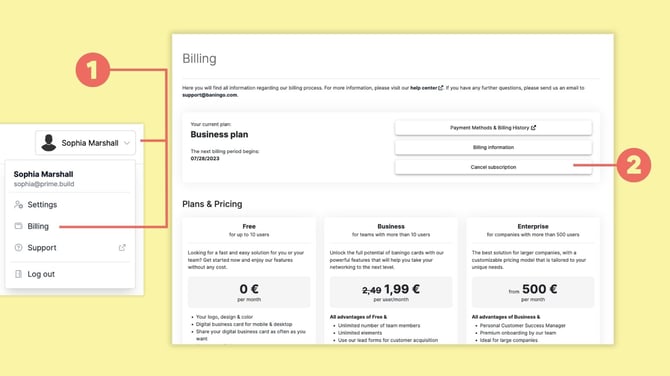
Open Billing (1).
Click Cancel subscription (2).
Confirm the cancellation by selecting Yes, cancel the subscription.
Your Business Plan remains active until the end of the current billing period. After that, your account is downgraded to the Free Plan and the Free Plan limitations apply again.