
Add a team member
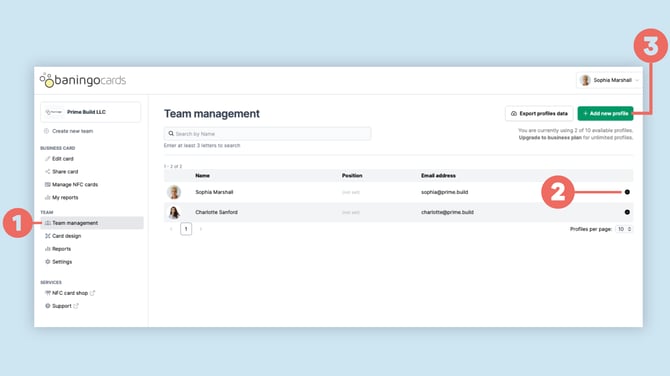
Open Team management (1) for the team you want to manage.
Here you can view your existing profiles and access the available profile actions (2).
To add another person, click Add new profile (3).
You can add a profile in two ways:
- create a new profile directly
- add an existing profile from another team
Create profile(s) directly
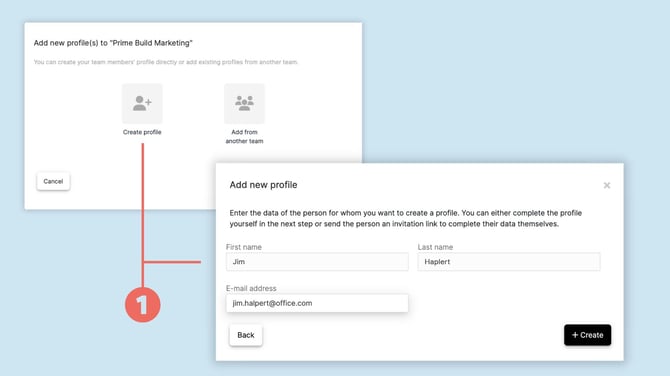
Select Create profile (1).
Enter the person's name and email address and create the profile.
After the profile has been created, you can manage and complete the digital business card as an administrator.
Creating the profile and giving the person access to baningo are separate actions.
If the person should also be able to log in and manage their own information, use Send login email from the profile actions. They will receive an email with a link that allows them to set their password and log in.
If you do not send a login email, you can continue managing the profile centrally yourself.
Add from another team
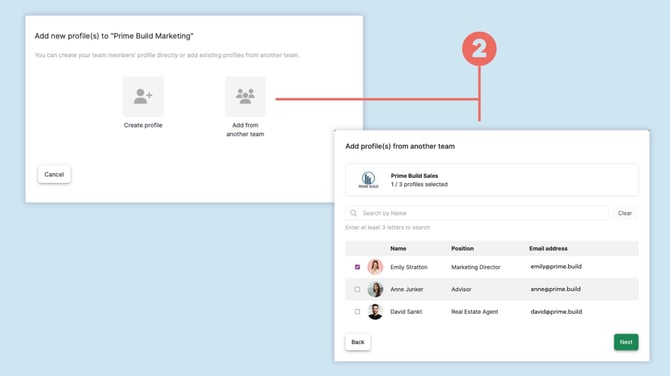
If the person already has a profile in another team, select Add from another team (2) instead of creating a second profile.
Select the existing profile from the list and follow the steps to add it to the new team.
A person who belongs to several teams can have a digital business card for each team.
Edit or delete a profile
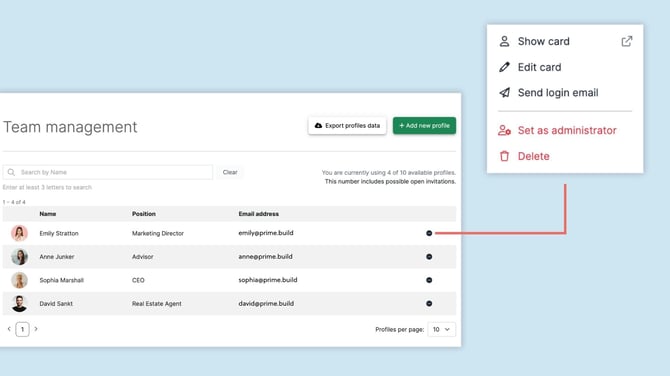
Open the three-dot menu next to the profile you want to manage.
Depending on the profile, available actions include:
- Show card: Open the public digital business card.
- Edit card: Update the information on the card.
- Send login email: Give the person access to their baningo account.
- Set as administrator: Grant administrator rights.
- Delete: Permanently remove the profile.
Give a user administrator rights
To give another person administrator rights, open the three-dot menu next to their profile and select Set as administrator.
Administrators can manage areas such as the team, card design and settings.
Only grant administrator rights to people who should have access to these management functions.
Multiple cards and employee changes
You can manage multiple digital business cards centrally through Team management.
If the same person belongs to several teams, they can have a separate digital business card for each team.
If someone's contact information changes, update the corresponding profile. The digital business card will reflect the updated information.
If an employee leaves your organization and the profile is no longer required, you can remove it using Delete.