Add a link
Open Card design for the team you want to edit.
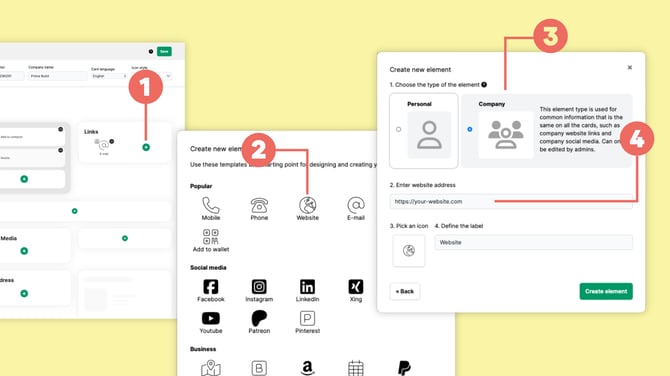
Click the + icon (1) in the position where you want to add the link.
Choose the type of link you want to add. For example, select Website (2).
Decide whether the link should be Personal or Company information.
For a company website, choose Company (3) and enter the URL (4).
Click Create element and save your changes.
If you create a Personal link instead, each team member can enter their own URL later under Edit card.
Edit an existing link
To change an existing link, open Card design and locate the element.
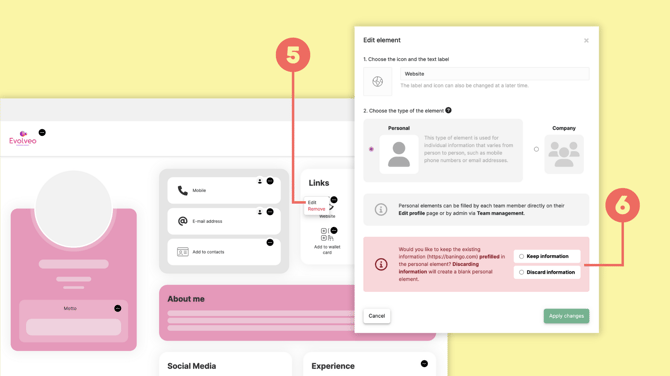
Open the three-dot menu next to the element and select Edit (5).
Depending on the element, you can change settings such as:
- icon
- label
- element type
- URL for Company elements
Save the element and then save your changes in Card design.
Change the element type
You can change an existing link from Personal to Company or from Company to Personal.
Open the element using Edit (5) and select the new element type.
Depending on the change, baningo may ask what should happen to the existing information (6).
Select Keep information if you want to retain the available information, or Discard information if it should be removed.
Please note: Changing a Personal element to a Company element permanently removes information previously entered by individual users.
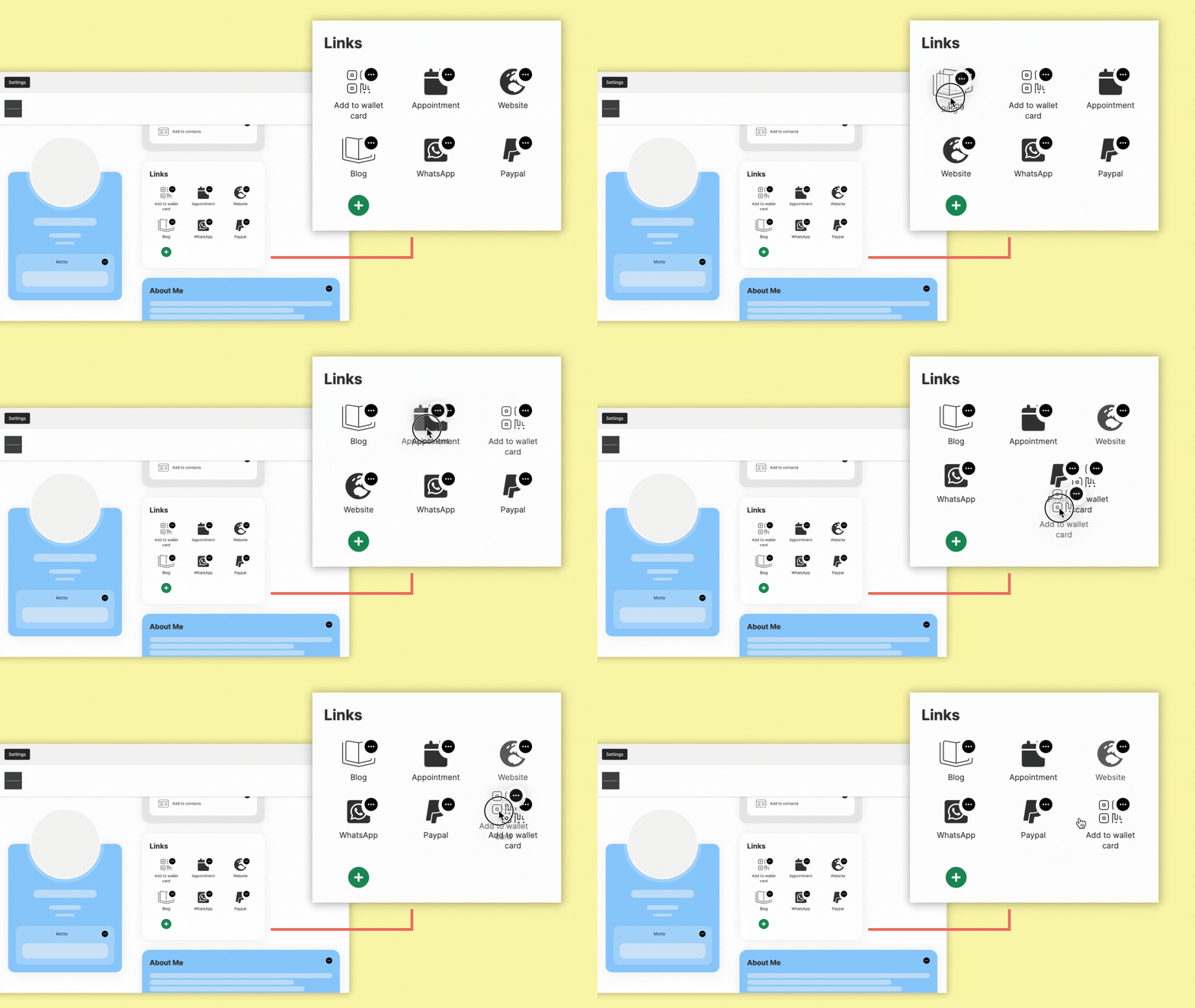
Reorder links
Open Card design for the team you want to edit.
Locate the link or element you want to move.
Click and hold anywhere on the element block itself.
Drag and drop the element up or down to your preferred position.
Click Save in the top right corner to apply the new order.