
Lock personal information
Open Team settings (1) for the team you want to configure.
Scroll to Lock personal information (2) and enable the setting.
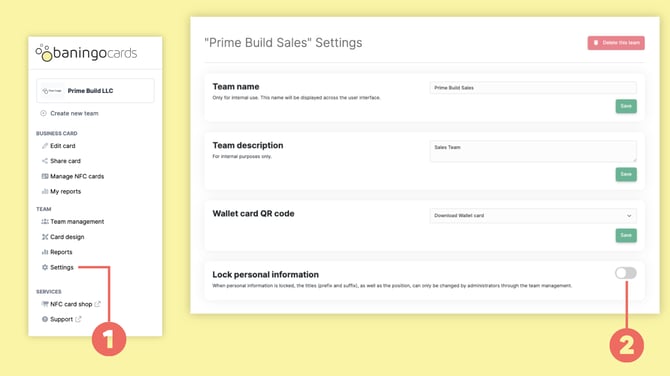
When personal information is locked, details such as names, titles and positions can only be changed by administrators.
The setting applies per team, so different teams can use different restrictions.
Lock individual Personal elements
You can also lock individual elements that are defined as Personal.
Open Card design (1).
Find the Personal element you want to lock and open the three-dot menu (2).
Enable Lock personal element (3).
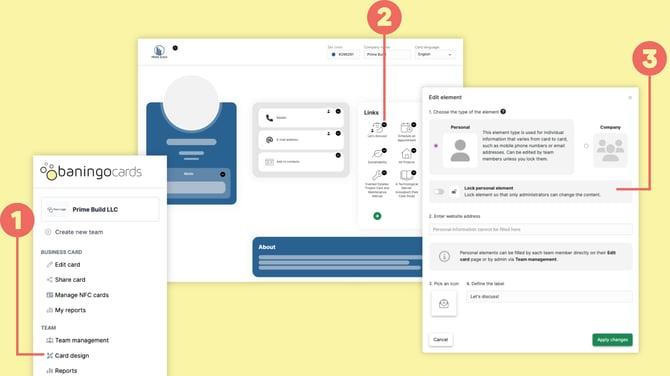
The element remains a Personal element, but team members can no longer change its content themselves. Administrators can still manage the information by editing the person's digital business card.
Personal element or Company element?
Locking a Personal element is useful when the information can differ between team members but should still be controlled by an administrator.
If the information should be identical on every digital business card in the team, use a Company element instead.
For more information, see What's the difference between Personal and Company elements?