
Customizing branding, footer options, and legal links is available on Business and Enterprise plans.
Remove baningo branding and links
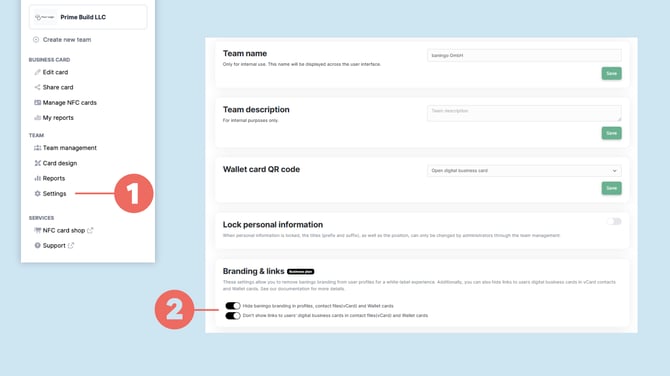
- Open Team settings (1) for the team you want to configure.
- Scroll to the Branding & links (2) section.
- Enable the options you want to apply to the team:
- Hide baningo branding in profiles, contact files (vCard) and Wallet cards
- Don't show links to users' digital business cards in contact files (vCard) and Wallet cards
- Click Save to apply your changes.
Please note: These settings are configured separately for each team. If you manage several teams, repeat this process for every team where you want to use white-label settings.
Add the accessibility statement and imprint
You can add links to your organization's existing legal pages, which will appear in the footer of all digital business cards belonging to that team.
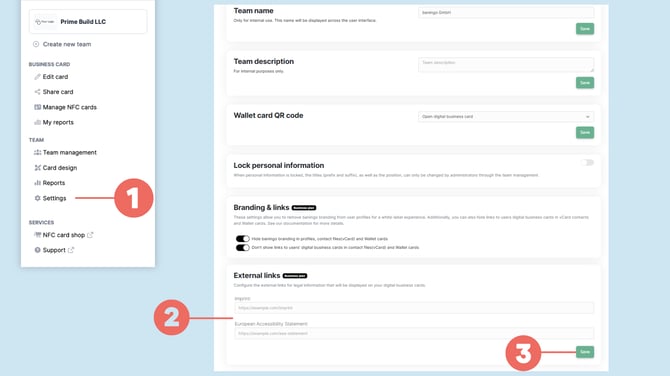
- In Team settings (1), scroll to the External links (2) section.
- Enter the corresponding URLs for:
- Imprint
- European Accessibility Statement
- Click Save (3) to apply your changes.
Use a custom domain for complete white-labeling
If you also want your digital business cards to run on your own company domain (e.g., cards.yourcompany.com), you can configure a custom domain.
Custom domains require a separate DNS configuration. For the complete setup guide, see How to configure a custom domain for white-label use.