
How to tap your NFC business card
Make sure the smartphone is unlocked and ready to receive an NFC signal.
Hold the NFC card close to the smartphone's NFC antenna.
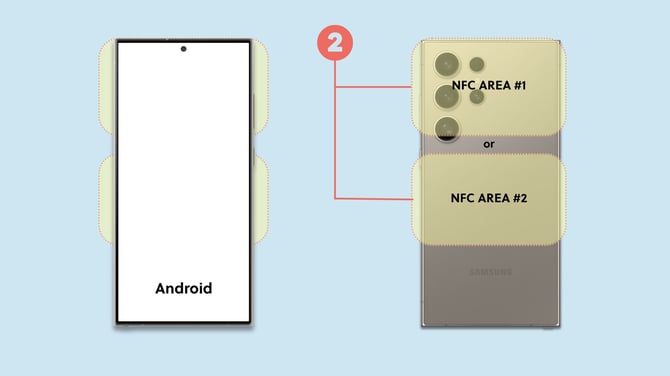
The exact NFC reader position differs between devices, so you may need to try the upper, middle or lower part of the phone.
Keep the card close to the smartphone until a notification appears.
Tap the notification to open the connected digital business card.
How to tap an NFC card on an iPhone
- Check NFC support: iPhone XS/XR and newer models automatically read NFC tags in the background whenever the screen is awake.
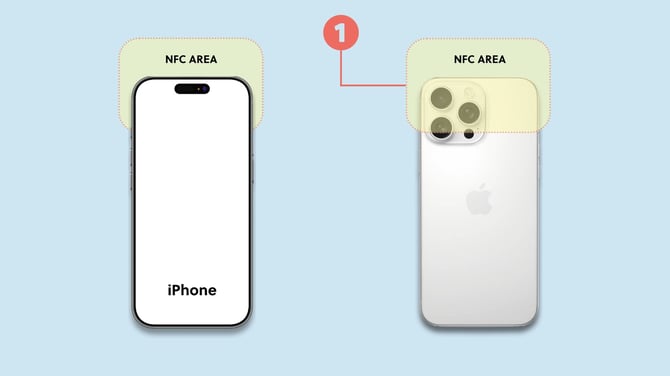
- Tap the NFC card: Hold the NFC card near the top edge of the back of your iPhone, where the NFC antenna is located (1).
- Wait for confirmation: A notification or slight vibration will confirm the card has been read successfully. Tap the notification to open the digital business card.
How to tap an NFC card on an Android phone
- Enable NFC: Go to your phone's Settings > Connections or More connections > NFC, and turn the switch on if it is not already enabled.
- Tap the NFC card: Hold the NFC card near the back of your phone, typically near the center or top, where the NFC sensor is located (2).
- Wait for confirmation: You will see a notification, hear a sound, or feel a vibration confirming that the NFC card has been read successfully.
For metal NFC cards, use the back side of the card when tapping, as the metal can block the NFC signal from the front. The existing NFC usage source explicitly distinguishes metal cards from the other NFC products for this reason.
Check whether a smartphone supports NFC
Most modern smartphones include NFC functionality.
If you are unsure whether a specific device supports NFC, check the technical specifications provided by the smartphone manufacturer.
Some Android devices also require NFC to be enabled manually.
For instructions, see How to enable NFC on your Android device.
Sharing with devices without NFC
If the other device does not support NFC, use the QR code instead.
Depending on your NFC card, a QR code may already be printed directly on the physical card.
You can also display or download your personal QR code through Share card.
The recipient can scan the QR code with their smartphone camera to open your digital business card. The legacy source explicitly provides QR code sharing as the fallback for devices without NFC.