
Add your card to Apple Wallet or Google Wallet
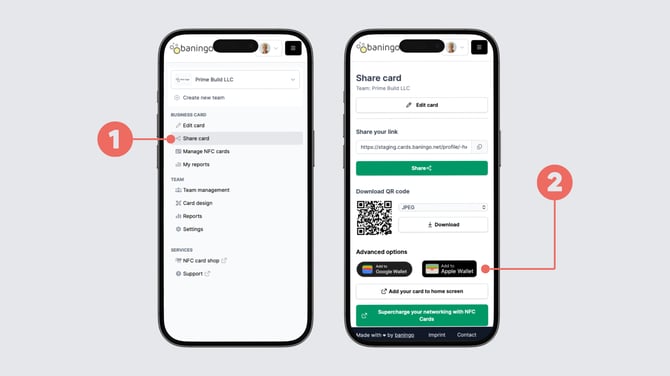
Open Share card (1).
Scroll down to the Advanced options section.
Select Add to Apple Wallet if you are using an iPhone or Add to Google Wallet (2) if you are using an Android device.
Follow the instructions on your smartphone to add the card to your Wallet app.
Once added, you can quickly open your Wallet card and show its QR code when you want to share your digital business card.
Update your Wallet card
If you update information on your digital business card, the changes are also reflected in your Wallet card.
If your Wallet card does not show the latest information immediately, refresh the pass in your Wallet app.
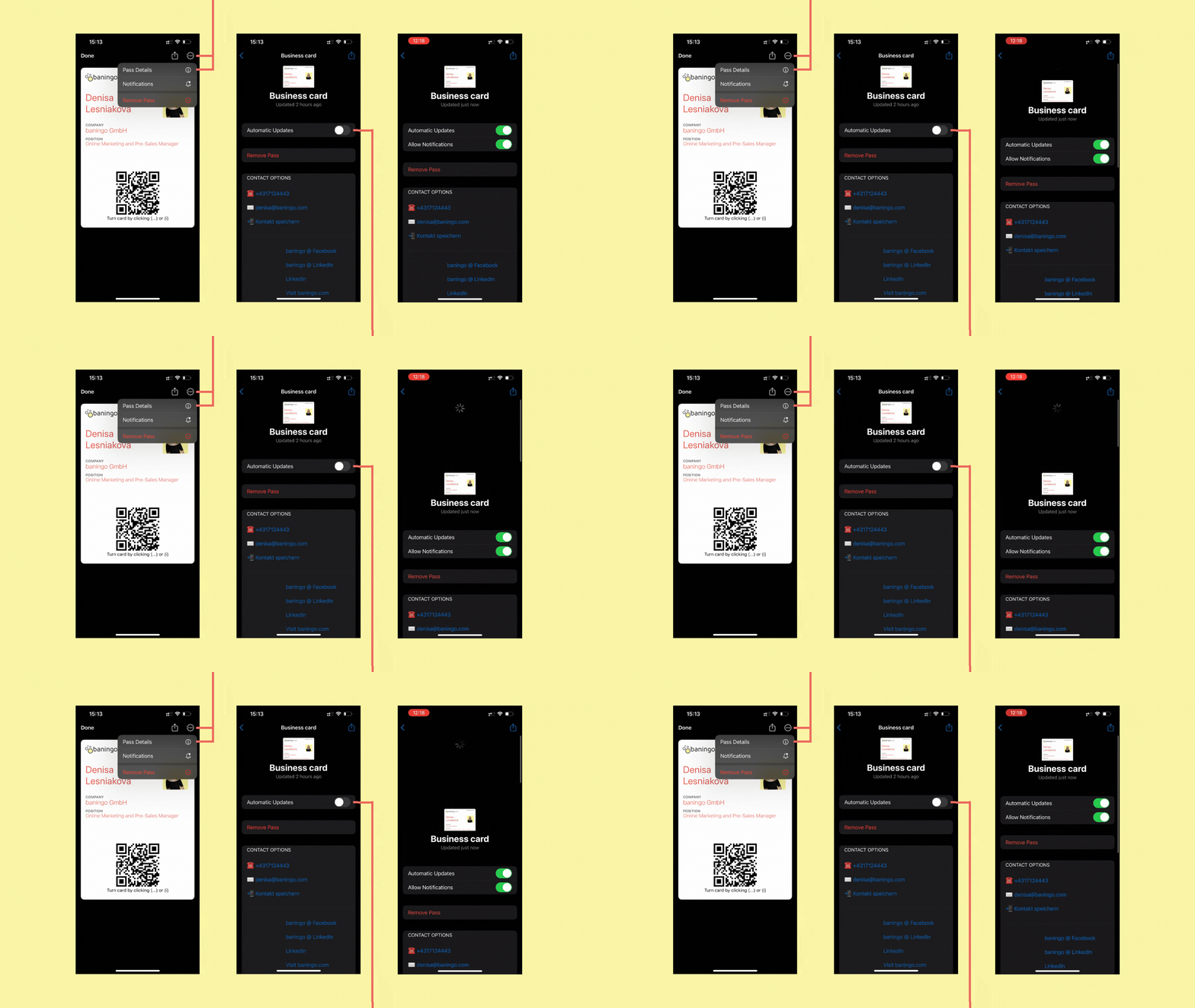
For Apple Wallet, make sure Automatic Updates are enabled for the pass.
You can also manually refresh the pass by pulling down on the pass details screen.
Remove a card from Apple Wallet
To remove your digital business card from Apple Wallet:
- Open the Wallet app on your iPhone.
- Select the digital business card you want to remove.
- Tap the three-dot menu in the top-right corner.
- Open the pass details.
- Select Remove Pass and confirm.
The digital business card will then be removed from Apple Wallet.